Other Free Resources
Premium


Home » Free Resources » Resume Templates » Google Docs Resumes
Browse our collection of modern, ATS-friendly resume templates for Google Docs. Whether you’re a new graduate, changing careers, or applying for senior roles, these editable templates make it easy to create a professional resume right in your browser.
Instant access and 100% free.
613,593 Downloads and Counting
We are happy to say that we have been able to help hundreds of thousands of people with their job search in over 120 countries.
Other Resume File Formats Available:
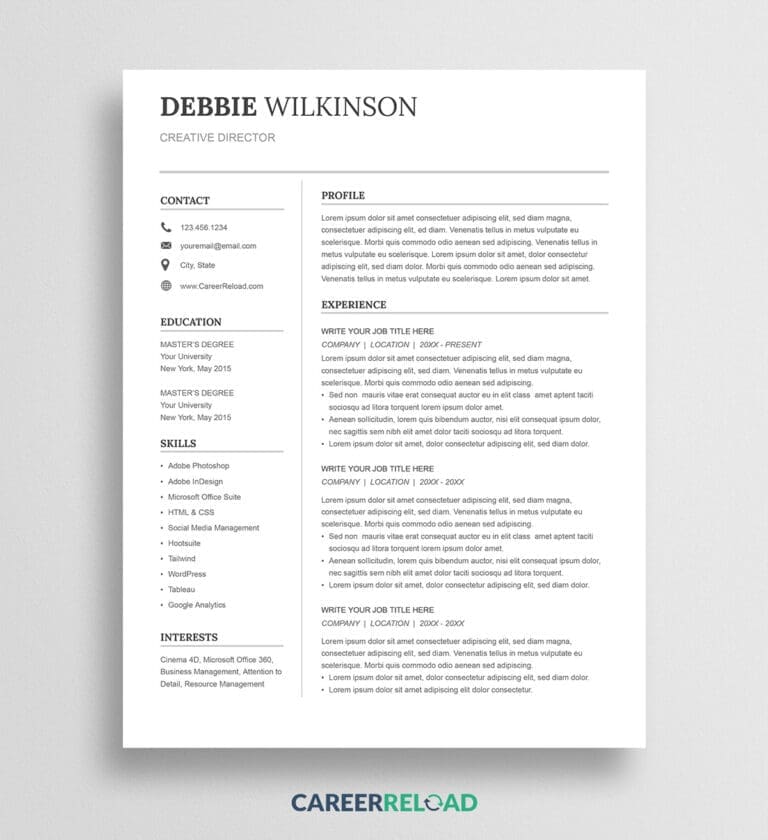
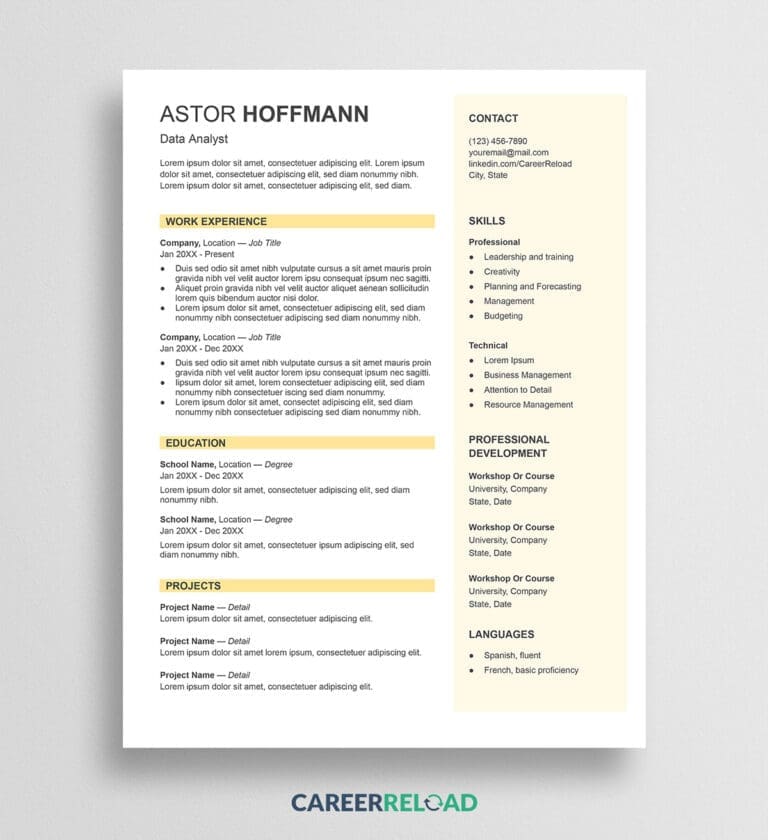
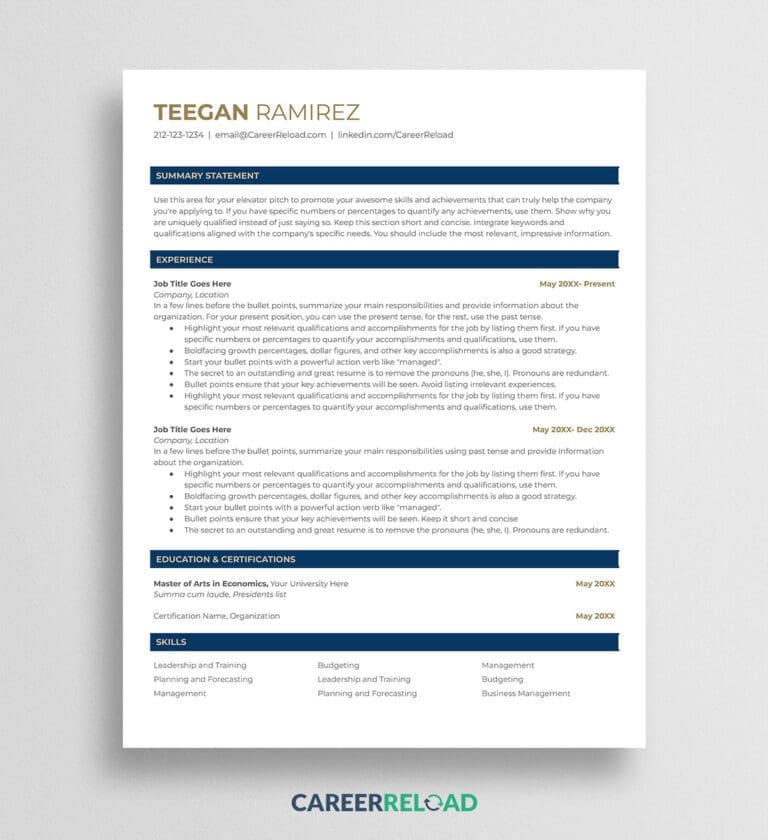
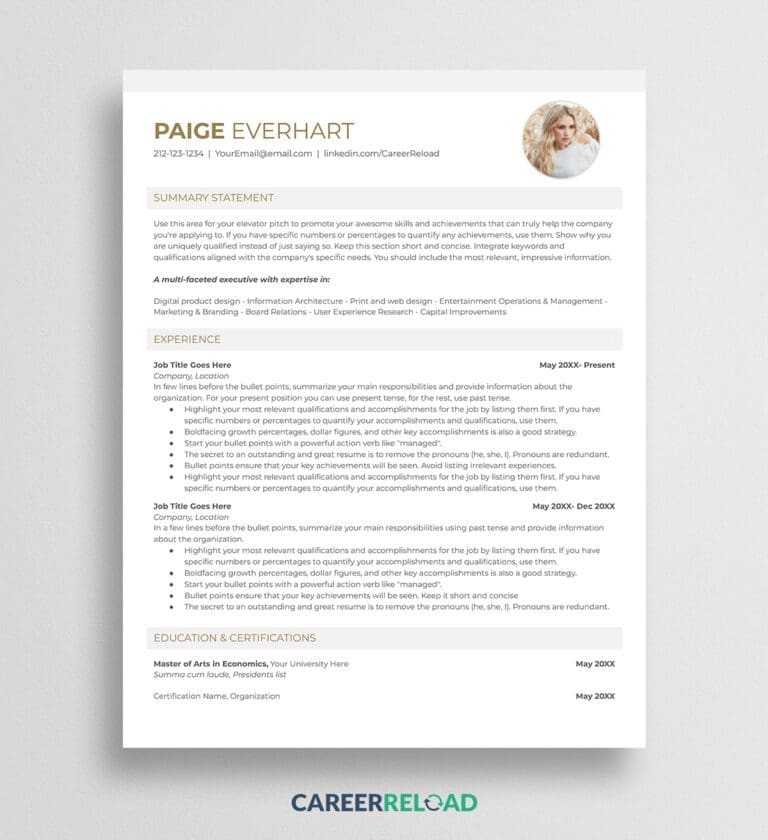
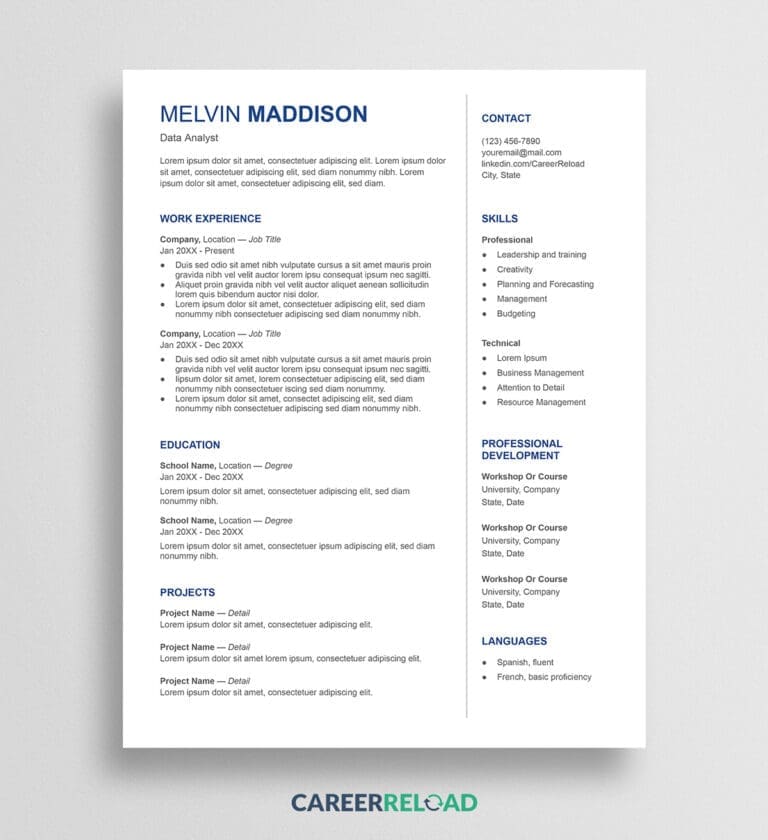
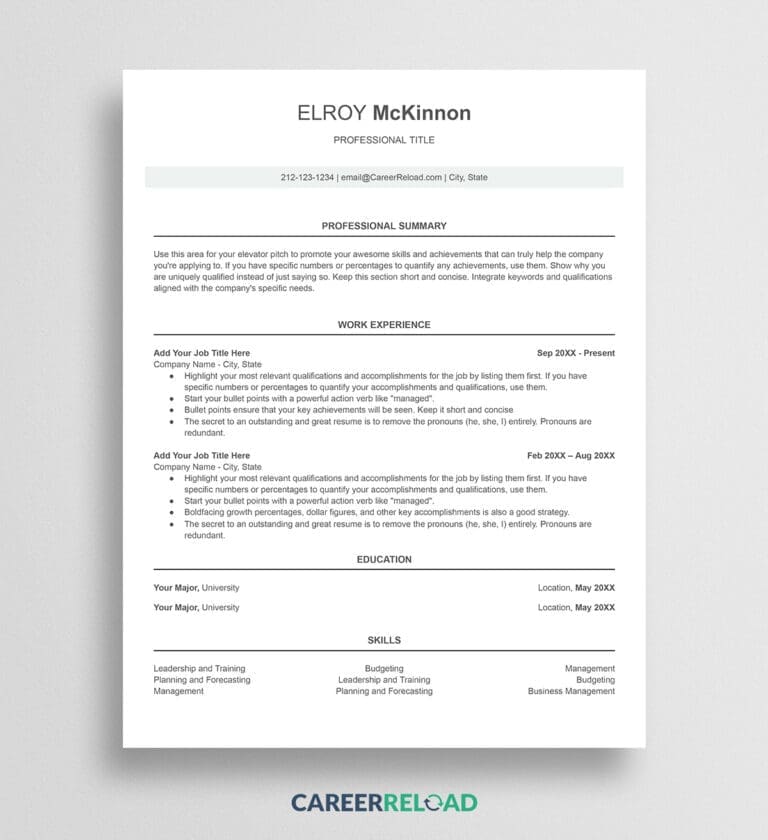
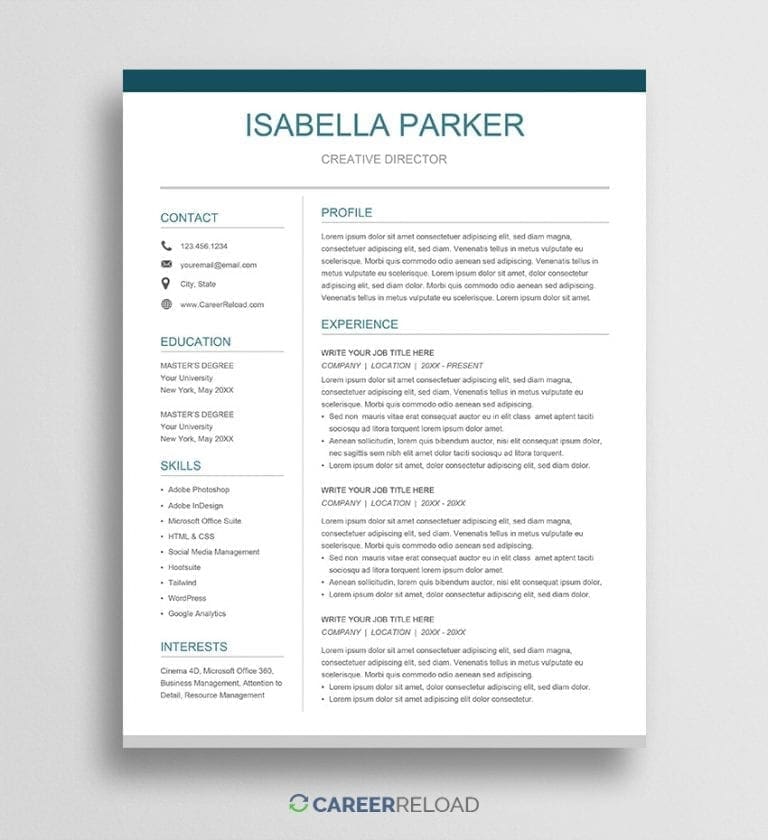
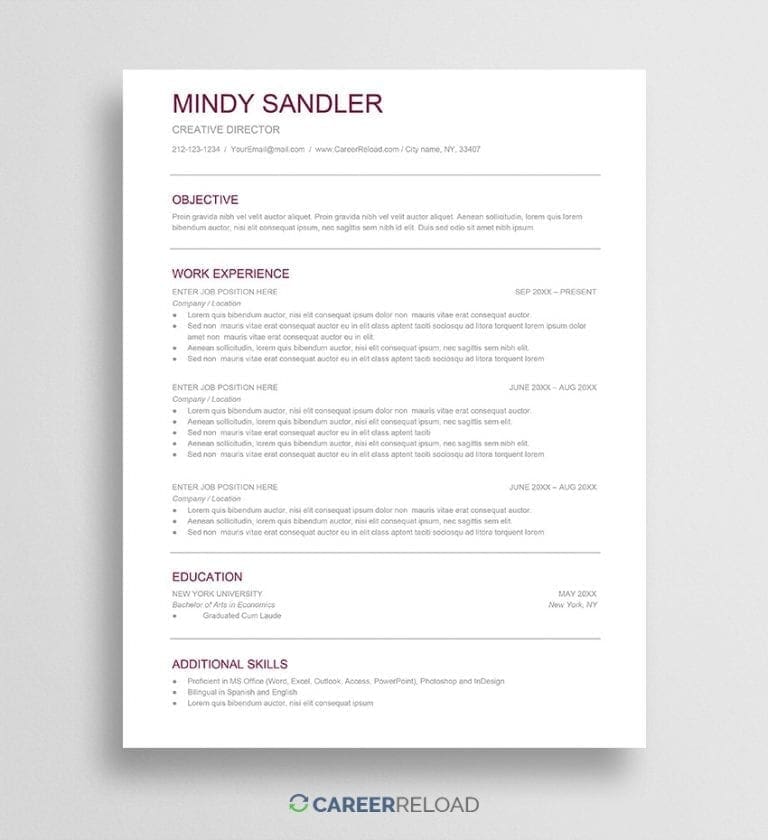
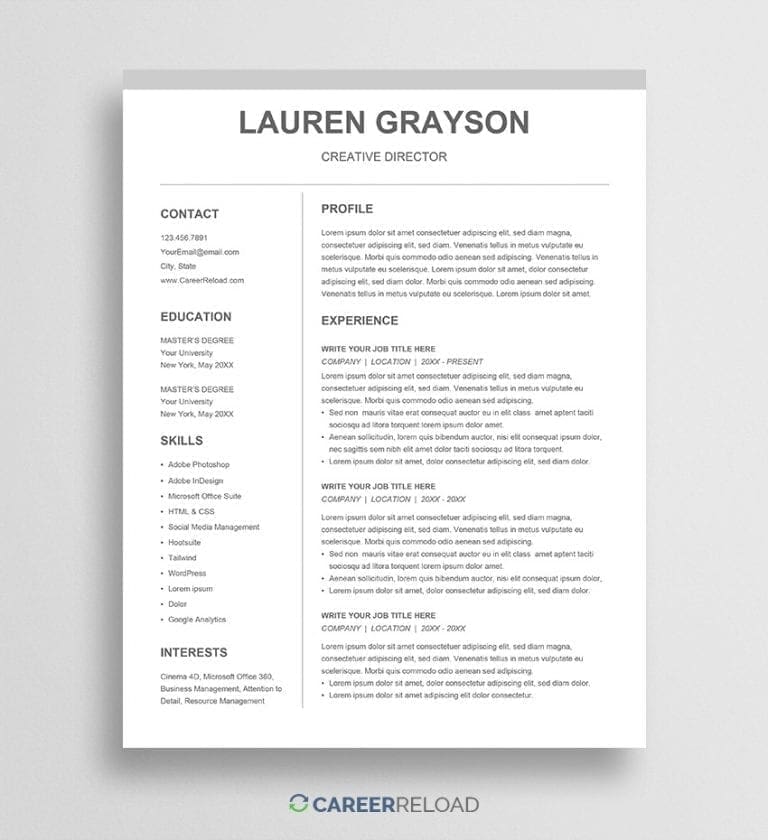
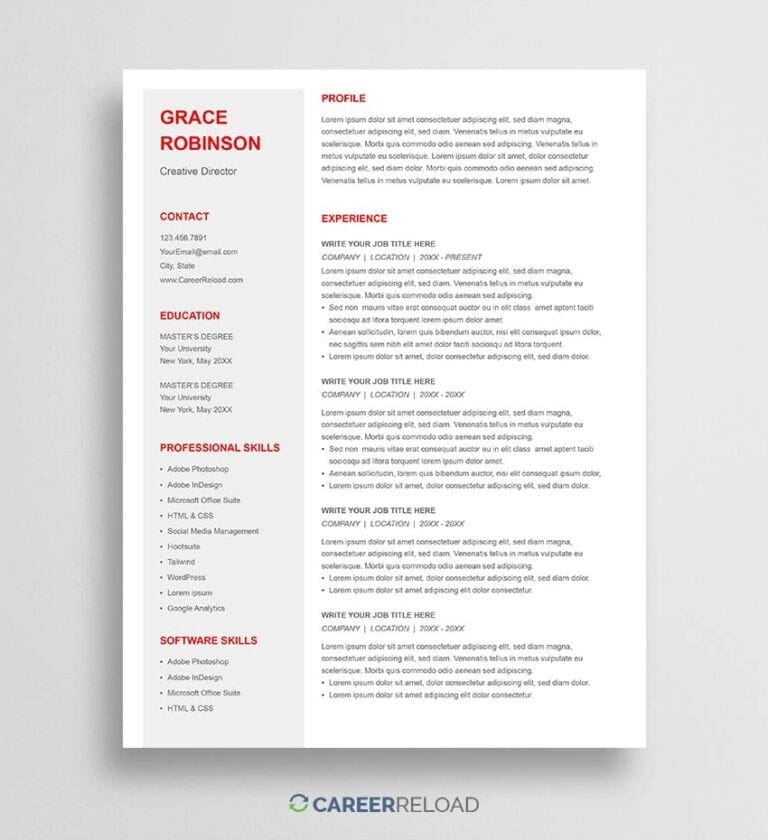
Professional resume templates for Google Docs that you can save to your Drive. These resume designs are great for job seekers nearly in any industry.





Quite helpful for someone who is out of work and not very tech, or resume savvy.
– Mark
This is such a great site. Thank you for your generosity!
– Michelle
Definitely going to recommend to others in my circle!
– Aaron

Once you’ve chosen your favorite Google Docs resume template, click the access link, make a copy, and start filling in your details. Each template is fully editable, so you can adjust fonts, colors, and sections to fit your needs.
To learn more, read: How to Make a Resume on Google Docs (Step-by-Step Guide)
Below is a simple outline to help you structure your resume effectively.
Start your summary with 2–3 lines that highlight your most relevant experience and skills. Tailor it to match the job title and keywords in the description.
List your most recent position first and work backward in reverse chronological order. Include your job title, company name, location, and dates of employment. When describing your responsibilities, use action verbs and measurable results.
For example: “Improved order processing speed by 15% through workflow automation.”
If you have limited work experience, place your education section above your experience. Here is an example how to list your education on your resume:
Degree Name / Major, University
Location / Start Date – End Date
• Honors / GPA if 3.6 or higher
Don’t forget to pair your resume with a matching Google Docs cover letter.
Here are quick answers to the most common questions job seekers ask. If you need further help with writing your resume, we have built a section where you can find resume examples by profession.
Google Docs resume templates make resume building simple, flexible, and accessible from anywhere. They are especially helpful for job seekers who want to create a professional resume quickly without installing software.
Here’s why they stand out:
Yes. Google Docs is a secure platform that protects your files with cloud encryption. Just make sure to adjust your sharing settings. Keep your resume set to “Private” and only share the link with trusted recipients.
Yes, you’ll need a free Google account to open, edit, and save templates in Google Docs. Signing up takes just a few minutes, and you’ll get access to Google Drive and other tools for storage and sharing.
Yes. You can change the font, color, layout, or section order to fit your needs. Each Google Docs resume template is fully editable, so you can personalize it without affecting the original file.
There are two simple ways to share your resume:
Alternatively, download your resume as a PDF by selecting File > Download > PDF Document (.pdf) and attach it to your application.
To keep your resume formatting consistent, download it as a PDF before sending. PDF files preserve your design, spacing, and fonts across all devices and operating systems.
Yes. Google Docs allows real-time collaboration. Share your document with a friend, mentor, or career coach and give them “Editor” access. You’ll see changes as they make them.
Yes. Turn on offline mode in Google Docs so you can keep working without Wi-Fi. Your changes will sync automatically once you reconnect to the internet.
Yes. Upload your Word file to Google Drive, right-click it, and select “Open with > Google Docs.” Review your resume afterward, as some formatting may shift slightly during conversion.
Yes. Employers care about content and presentation, not the tool used to create it. As long as your resume is clear, professional, and saved as a PDF, it will look just as polished as one made in Word or other editors.
Click “File” in the upper-left corner, then select “Print.” You can print directly or download your resume as a PDF first for best quality and consistent layout.