

Are you a Mac user looking to build a professional resume? Apple Pages provides an incredibly robust and free platform to design your resume. You do not need to purchase expensive software or subscribe to a premium resume builder to land your dream job.
This article outlines exactly how to create a resume in Apple Pages so you can impress recruiters and secure more interviews.
Also read:
- How to Make a Resume on Google Docs (Step-by-Step Guide)
- How to Create a Resume in Word (Step-by-Step Guide)
Open a new document or start with a template
You have two main options when starting your resume journey. You can build a blank document from scratch, or you can use a pre-formatted design. Building from scratch gives you ultimate control over every pixel and layout choice.
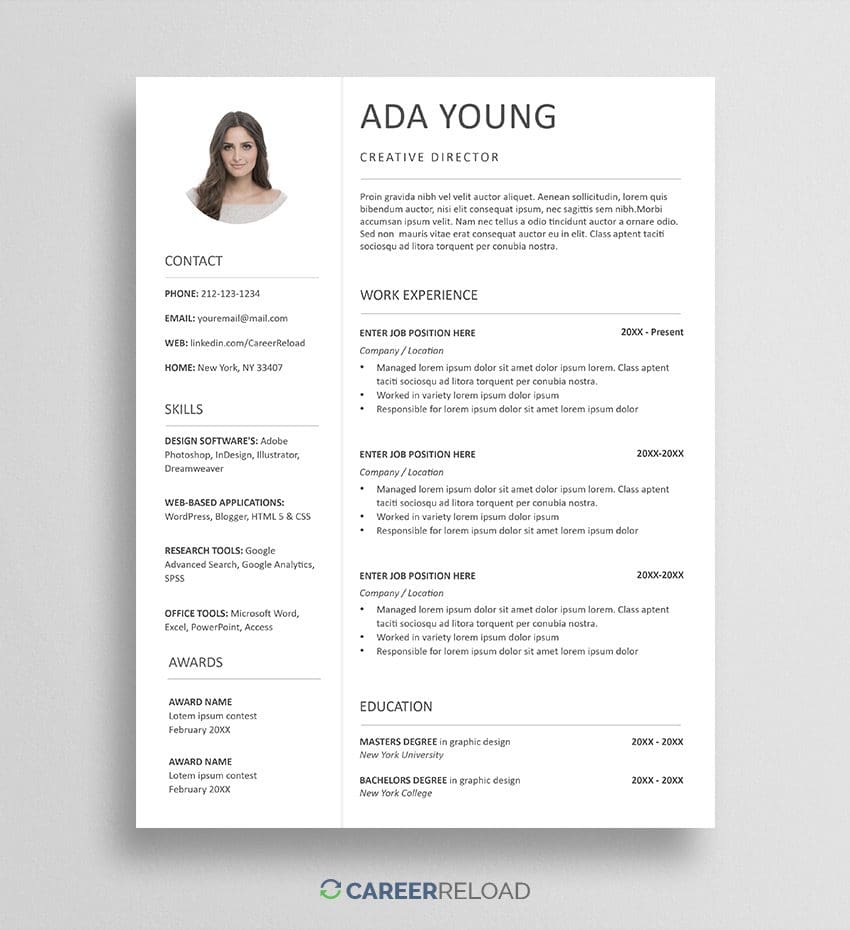
However, using a template saves you hours of formatting work and ensures a professional look immediately. We highly recommend using Career Reload’s free Pages templates to jump-start creating your resume.


Set your page layout and margins
Applicant tracking systems and recruiters need clean layouts to read your information accurately. If you choose to start from a blank document, you must configure your page settings first. Click the Document icon in the top right corner of the Pages window to adjust your margins and document style.
- Adjust your margins: Keep margins between 0.5 and 1 inch on all sides so the page looks balanced and not overcrowded.
- Pick the right size: Select the standard US Letter page size or A4 depending on your specific region.
- Toggle document body: Turn off the document body text feature if you want to use floating text boxes for a highly creative and flexible layout.

Download the resume in the picture
Choose professional fonts and formatting
Your font choice dictates how employers view your application. Employers prefer clean, legible typefaces that look great on both digital smartphone screens and printed paper. Highlight your text and click the Format paintbrush icon to change your typography settings.
- Select readable fonts: Pick classic, professional fonts like Helvetica, Garamond, Arial, or Calibri.
- Optimize body text: Set your body text size to 10 or 12 points for maximum readability.
- Highlight headers: Make your section headers 14 to 16 points and bold so recruiters can skim your document easily.
- Emphasize your name: Ensure your name stands out at the very top of the page by setting it to 18 to 24 points.
Add your core resume sections
You must populate your document with your professional history and achievements. Apple Pages allows you to insert text boxes, shapes, and lines to separate your information neatly. Use the Insert menu at the top of the screen to add horizontal lines between sections for a crisp, organized look. Include these essential categories in your document:
- Contact Information: Include your full name, phone number, professional email address, and LinkedIn profile link.
- Professional Summary: Write a brief paragraph highlighting your top achievements and career goals.
- Work Experience: List your previous roles in reverse chronological order. Use bullet points to describe your accomplishments and quantify your results with real numbers.
- Education: State your degree, university name, and graduation year.
- Skills: Detail your hard and soft skills that directly relate to the job description.
Try The Free AI Resume Builder
Try our free AI resume builder, and create an optimized resume in no time. Creating a resume has never been this easy!
Export your file as a PDF
You must always export your final resume as a PDF file. If you submit a native Pages document, recruitment software and recruiters using Windows computers will fail to open it. A PDF preserves all your formatting, fonts, and layout choices perfectly across all devices.
- Click “File” in the top menu bar of your screen.
- Select “Export To” and choose the “PDF” option from the dropdown menu.
- Choose “Best” for the image quality setting.
- Save the file with a professional naming convention, such as “Firstname_Lastname_Resume.pdf”.
You now know how to design a compelling job application using your Mac. Follow these steps, focus on your biggest career achievements, and proofread your document carefully. A polished resume helps you stand out from the competition and advance your professional career.
Frequently Asked Questions
Does Apple Pages offer free resume templates?
Apple includes several free resume templates natively within the Pages application. You can find these by opening the app and browsing the template chooser under the Resumes category. Additionally, third-party websites like Career Reload provide excellent free templates. Downloading external templates gives you access to a much wider variety of modern layouts.
Do applicant tracking systems read Apple Pages resumes?
Applicant tracking systems generally struggle to read native Pages files. Employers and recruitment software require universally accepted file formats to scan your application accurately. You must always export your document before you submit your application to a company. To ensure ATS compatibility, click File at the top of your screen and select Export To from the drop-down menu. Choose the PDF or Word format option and upload this newly exported version directly to the online job board.
Can I save my Apple Pages resume as a Microsoft Word document?
You can easily convert your Apple Pages resume into a Microsoft Word file. This feature proves incredibly useful if a specific job listing explicitly requests a Word document instead of a PDF. Apple handles the conversion process seamlessly to preserve your formatting. Open your finished resume document, navigate to the File menu, and click Export To. Select Word from the list of available options and click Save to generate your new document file.
How do I fit my Apple Pages resume onto one single page?
Job seekers often struggle to keep their resumes concise. If your document spills onto a second page, you can adjust several settings within Apple Pages to compress your layout. Reduce your page margins slightly while keeping them above half an inch to maintain readability. You can also decrease the line spacing between your paragraphs and lower your body text font size to ten points. Lastly, delete outdated work experience and remove any high school education details to save valuable space.
Can you use Apple Pages on Windows?
You can absolutely use Apple Pages on a Windows computer. While Apple does not offer a native Windows desktop application, you can access the software directly through your web browser. You just need to log into the iCloud website using your Apple ID. From there, you can open Pages via iCloud and create your resume just as you would on a Mac device. This web-based version includes all the essential formatting tools you need to build a professional job application.
Is Apple Pages free?
Apple Pages is entirely free for everyone to use. Apple includes the software pre-installed on all new Mac computers, iPads, and iPhones at no extra cost. If you do not own an Apple device, you can still use Pages via iCloud for free. You simply need to create a free Apple ID online and log into the iCloud website to access the word processor. This allows anyone to start designing a highly professional resume without spending a dime.

We’re a team of writers and career experts who share practical insights to help you navigate the professional world. Our members include Certified Professional Résumé Writers (CPRW) and Certified Digital Career Strategists (CDCS), and we bring experience from many industries to help you build your career with confidence.
Others also read
Why you Should Attend Career Fairs
10 Career Coaches and Their Best Career Advice
4 Tips for Creating an Elevator Pitch for Job Seekers + Worksheet
How to Highlight Volunteer Experience on Your Resume
14 Best Resume Tips That’ll Help You Get Hired
How to Convert Federal Resume for the Private Sector
Future-Proof Job Roles to Thrive in the Age of Automation
How to Tailor Your Resume to the Job Description and Get More Interviews
You Might Also Like These Free Templates
Resume Template in Word Document
Google Docs Resume Format – Debbie
Free Template for Resume
Free Resume Form Template
2 Column ATS Resume Template
ATS Friendly Resume Format for Word – Lindsay
Cover Letter Template with Monogram
Professional Cover Letter Template
Free Modern Resume Template for Word
Free Job Application Tracker for Excel
Free Resume Template Download for Word – Farrah
Free ATS-Friendly Resume Template – Emily